> ## Documentation Index
> Fetch the complete documentation index at: https://developer.jtl-software.com/llms.txt
> Use this file to discover all available pages before exploring further.
# Publish to the App Store
> Create a public listing and submit your app for review to make it available to all merchants.
Publishing makes your app available to every merchant in the [App Store](https://apps.jtl-cloud.com/). You define a public listing, submit it, and JTL reviews it before it goes live.
## Before You Start
Your app needs to be registered, provisioned, and tested, and you need to [Become a Seller](https://www.jtl-software.de/extension-store/Seller-werden) to list it.
Deploy your app to a public URL with HTTPS and update its URLs to production in the app manifest before you submit.
## The Listing Manifest
You define your listing in a manifest. Set `distributionType` to `PUBLIC` to list it in the App Store.
```json theme={null}
{
"version": "1.0.0",
"defaultLocale": "de-DE",
"distributionType": "PUBLIC",
"name": {
"de-DE": {
"short": "My App",
"full": "My JTL Cloud App"
}
},
"description": {
"de-DE": {
"short": "A short teaser for search results and cards.",
"full": "The full description shown on the app's detail page."
}
},
"benefits": {
"de-DE": [
"Benefit 1",
"Benefit 2",
"Benefit 3"
]
},
"category": {
"main": "articles-product-data",
"sub": ["item-master-data-attributes"]
},
"media": {
"icons": {
"light": "https://example.com/icon-light.png",
"dark": "https://example.com/icon-dark.png"
},
"screenshots": [
{
"id": "screenshot-1",
"url": "https://example.com/screenshot-1.png",
"alt": "The app's dashboard"
}
]
},
"compatibility": {
"products": {
"de-DE": ["jtl-wawi"]
},
"productsNotes": "",
"minVersions": {
"jtl-wawi": "12.0.1"
}
},
"pricing": {
"subscriptionTiers": [
{
"id": "plan-free",
"content": {
"de-DE": {
"name": "Free",
"description": "For getting started.",
"features": ["Feature 1"]
}
},
"isFree": true,
"isMostPopular": false
},
{
"id": "plan-pro",
"content": {
"de-DE": {
"name": "Pro",
"description": "For growing merchants.",
"features": ["Feature 1", "Feature 2", "Feature 3"]
}
},
"isFree": false,
"monthlyPriceEur": 3,
"annualPriceEur": 30,
"isMostPopular": true
}
]
},
"support": {
"url": {
"de-DE": "https://example.com/support"
},
"documentation": {
"de-DE": "https://example.com/docs"
}
},
"legal": {
"privacyPolicy": "https://example.com/privacy",
"termsOfUse": "https://example.com/terms",
"gdpr": {
"request": "https://example.com/gdpr/request",
"delete": "https://example.com/gdpr/delete"
}
}
}
```
### Filling in your Listing
Before you submit, replace any development placeholders with production content:
* **Icons and screenshots**: Replace placeholder URLs with your production assets hosted at stable, publicly accessible URLs. Provide both light and dark icon variants.
* **Names and descriptions**: Finalize the copy for every locale you support (`name.{locale}.short`, `name.{locale}.full`, `description.{locale}.short`, `description.{locale}.full`).
* **Benefits**: Provide three to five localized benefits describing the value your app offers merchants.
* **Compatibility**: List the supported JTL products and specify a valid minVersions entry for each.
* **Support URLs**: Set `support.url.{locale}` and `support.documentation.{locale}` to publicly accessible support and documentation pages.
* **Legal URLs**: Ensure `legal.privacyPolicy`, `legal.termsOfUse`, `legal.gdpr.request`, and `legal.gdpr.delete` all point to published pages. These are required for JTL compliance.
Names, descriptions, benefits, supported products, and support URLs are localized by locale, allowing a single manifest to support multiple markets.
See the [Listing Manifest Reference](/guides/cloud-apps/listing-manifest) for more details.
### Pricing
Public listings must define at least one subscription tier under `pricing.subscriptionTiers`, up to a maximum of four.
You can configure your pricing tiers now, but merchant billing through them is not yet available. Defining your tiers now ensures your listing is ready when billing becomes available.
Each subscription tier includes:
* an `id`
* locale-keyed `content` (its name, description, and up to ten features)
* pricing information
For free tiers, set `isFree` to `true`. For paid tiers, set `isFree` to `false` and specify `monthlyPriceEur`. Use `isMostPopular` to highlight a single recommended tier.
A listing can contain only one free tier and only one tier marked as most popular. Subscription tiers are displayed in ascending price order, with the free tier appearing first.
## Create the Listing
Create your listing as a draft. All three paths produce the same listing.
If you're using one of the JTL Cloud App starter templates, update the `listing.json` file in your project root, then create the listing draft:
```bash theme={null}
npm run listing
```
If you're building your app from scratch:
1. Create a `listing.json` file in your project root
2. Generate the listing draft:
```bash theme={null}
npx -y @jtl-software/create-cloud-app@latest listing
```
The CLI reads your `listing.json` and creates a listing in the **DRAFT** state in the Partner Portal.
Once the listing is created, use the returned URL to open the listing in the [Partner Portal](https://partner.jtl-cloud.com/) to review and submit it.
In the [Partner Portal](https://partner.jtl-cloud.com/), navigate to **Publish apps** and select **Edit listing** for your app.
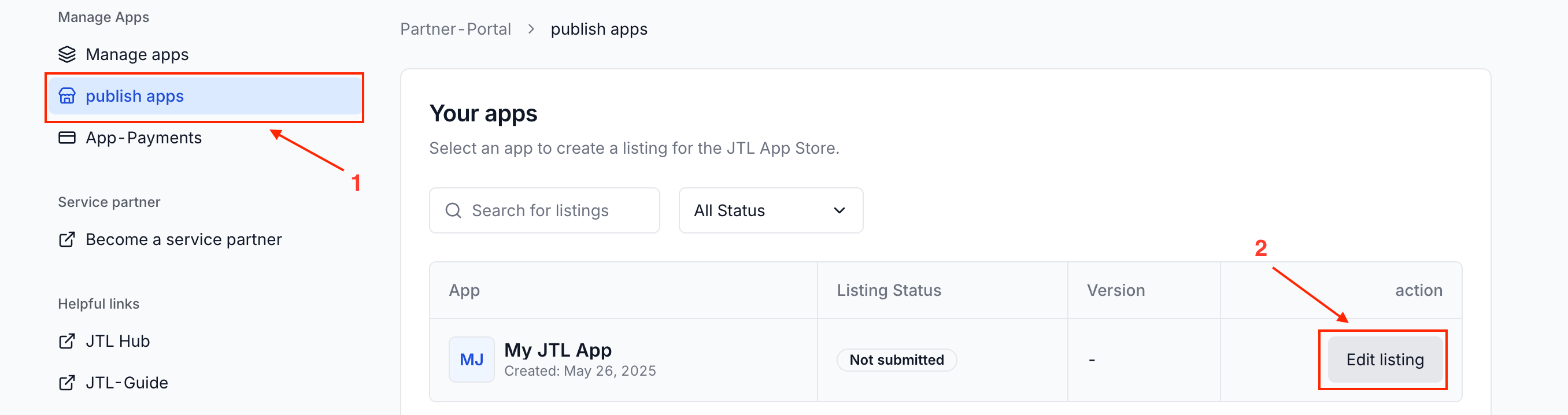 The Listing Wizard guides you through five steps:
1. Generally
2. Media
3. Compatibility
4. Prices
5. Legal
You can save your progress at any time. Your listing remains in the **DRAFT** state until you submit it for review.
#### 1. Generally
Configure the basic information for your app.
The Listing Wizard guides you through five steps:
1. Generally
2. Media
3. Compatibility
4. Prices
5. Legal
You can save your progress at any time. Your listing remains in the **DRAFT** state until you submit it for review.
#### 1. Generally
Configure the basic information for your app.
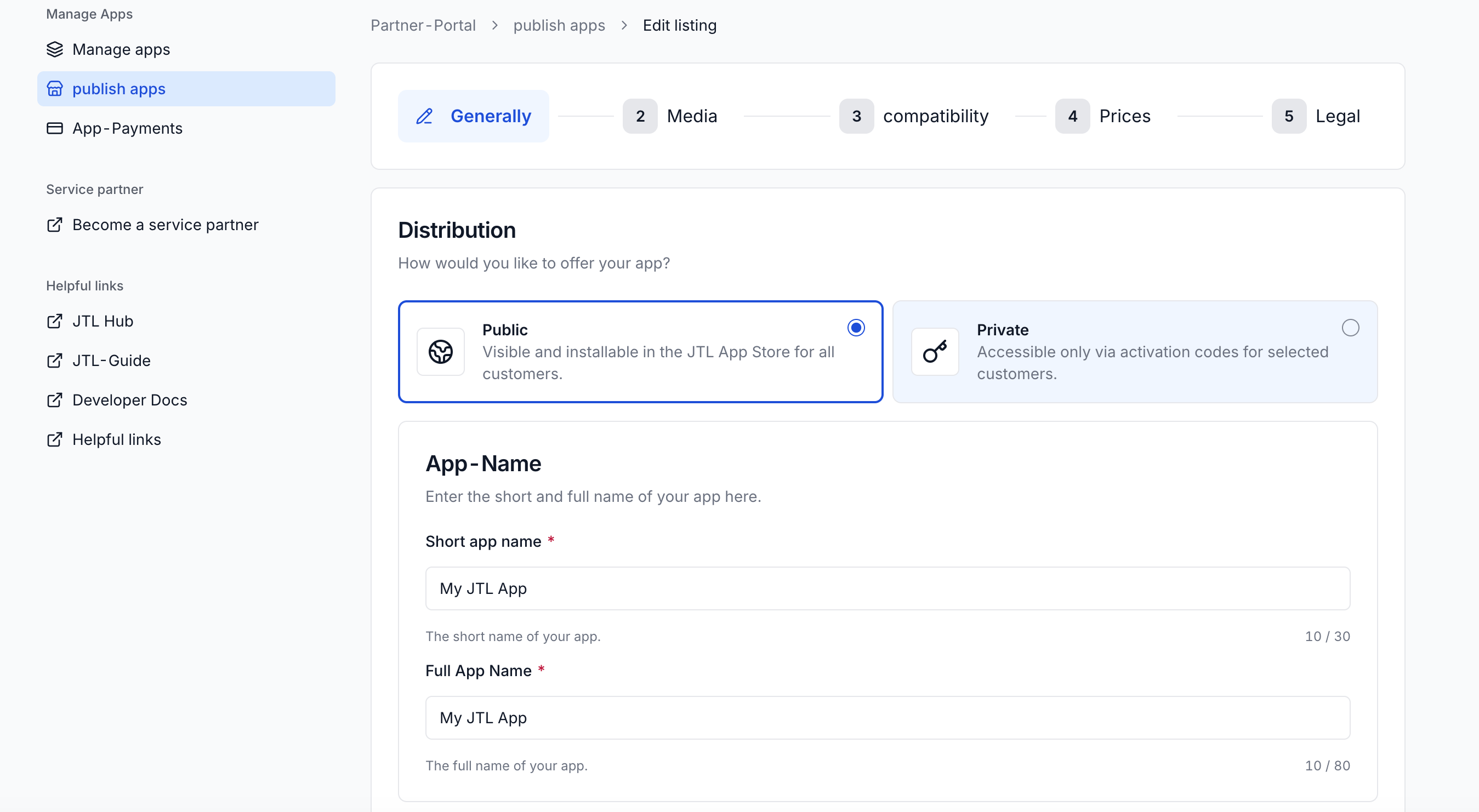 For the distribution type, choose **Public**. This makes your app eligible for publication in the App Store after it passes JTL's review.
Then fill in other required details and click **Further** to continue.
#### 2. Media
Choose your app category and upload your marketing assets.
For the distribution type, choose **Public**. This makes your app eligible for publication in the App Store after it passes JTL's review.
Then fill in other required details and click **Further** to continue.
#### 2. Media
Choose your app category and upload your marketing assets.
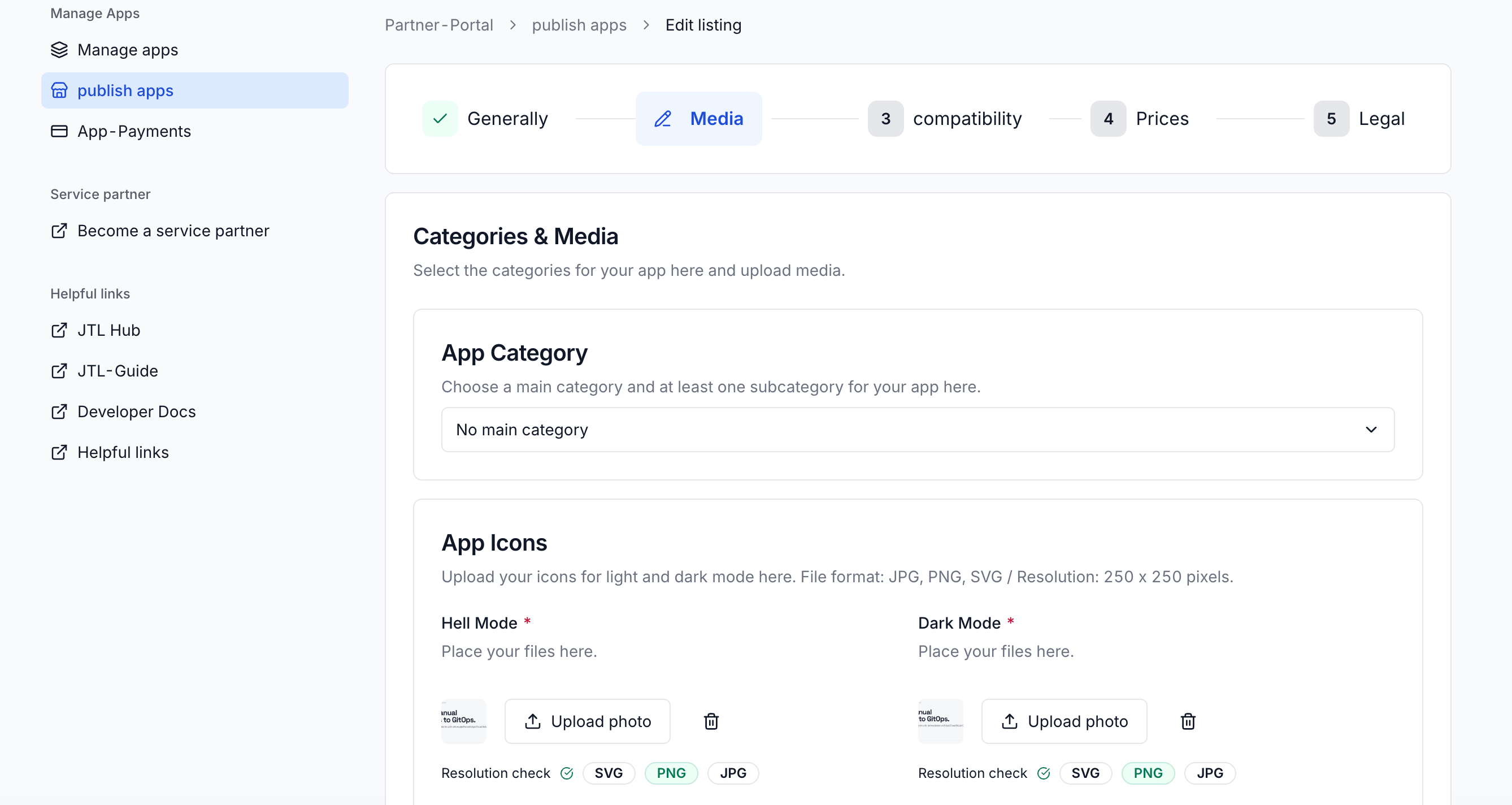 Provide:
* A primary category and at least one subcategory
* Light and dark app icons (JPG, PNG, or SVG, 250 × 250 px)
* At least one screenshot or product image (up to 5 MB each)
* An optional YouTube product video
#### 3. Compatibility
Choose which JTL products your app supports.
Provide:
* A primary category and at least one subcategory
* Light and dark app icons (JPG, PNG, or SVG, 250 × 250 px)
* At least one screenshot or product image (up to 5 MB each)
* An optional YouTube product video
#### 3. Compatibility
Choose which JTL products your app supports.
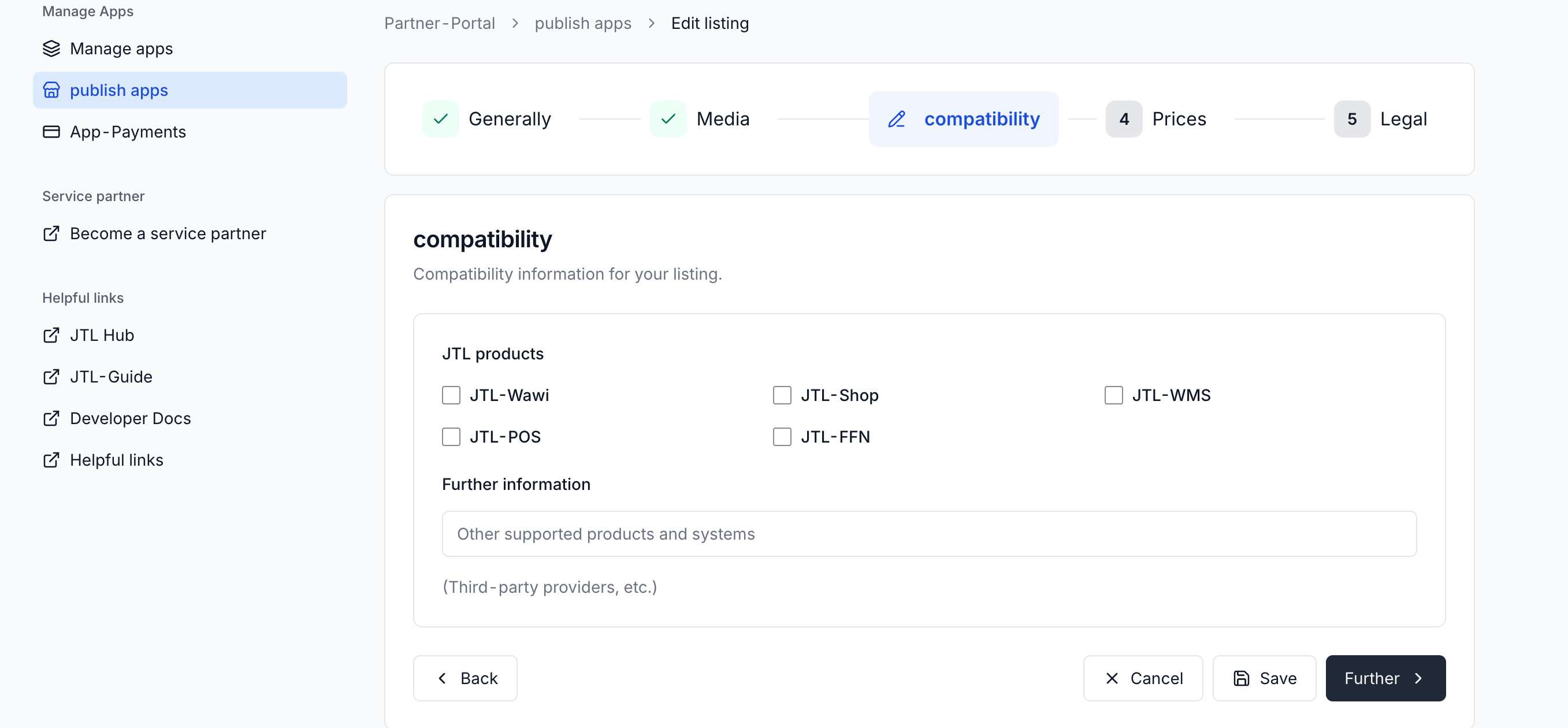 You can select:
* JTL-Wawi
* JTL-Shop
* JTL-WMS
* JTL-POS
* JTL-FFN
Use Further information to describe additional supported products or third-party integrations.
JTL-WMS and JTL-POS require JTL-Wawi. Selecting either product automatically selects JTL-Wawi.
#### 4. Prices
Every public listing must include at least one package. You can create up to four packages, each marked as Free or Paid.
You can select:
* JTL-Wawi
* JTL-Shop
* JTL-WMS
* JTL-POS
* JTL-FFN
Use Further information to describe additional supported products or third-party integrations.
JTL-WMS and JTL-POS require JTL-Wawi. Selecting either product automatically selects JTL-Wawi.
#### 4. Prices
Every public listing must include at least one package. You can create up to four packages, each marked as Free or Paid.
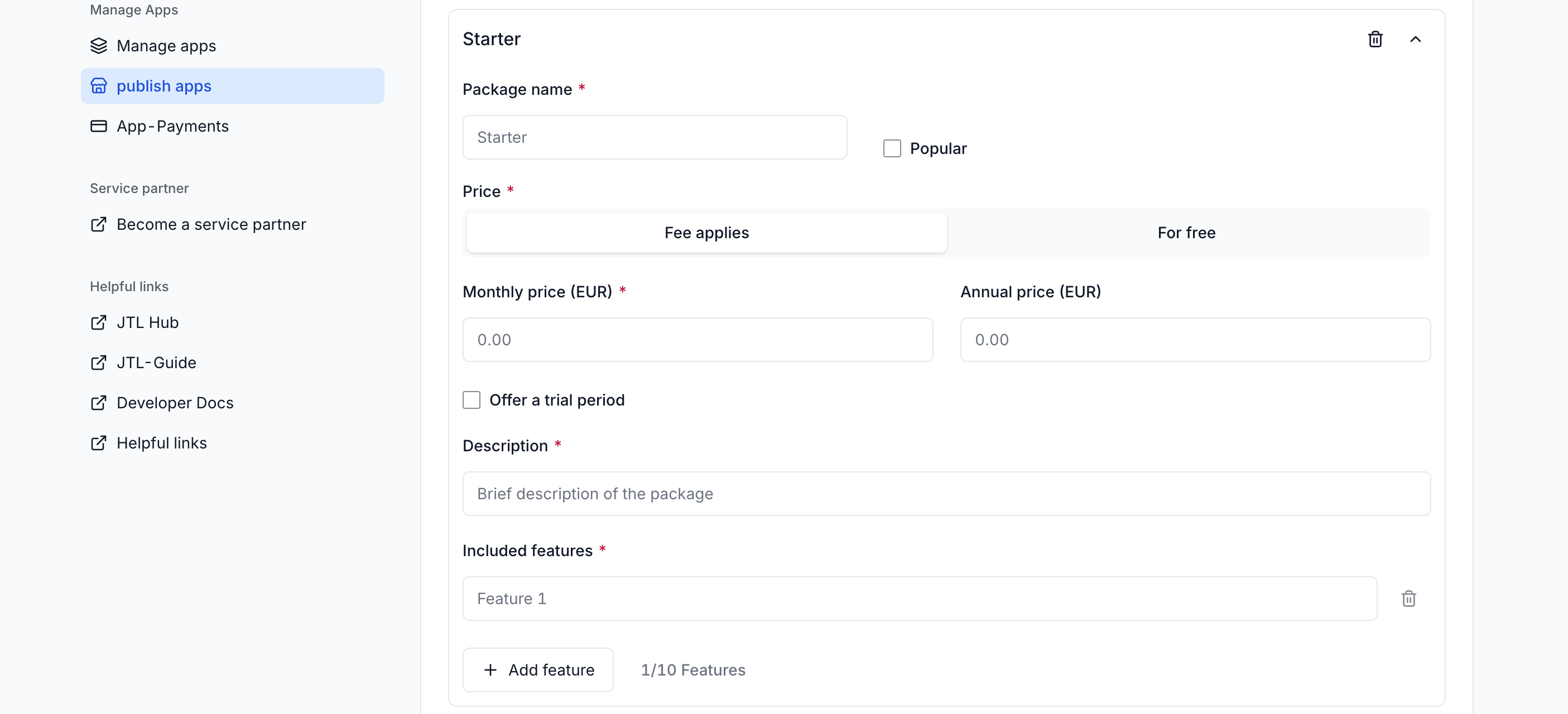 Although pricing can be configured now, merchant billing isn't fully available yet. Configure your packages so your listing is ready once billing becomes available.
For each package, provide the required details and note that a listing can have only one free package, and only one package marked **Most Popular**.
#### 5. Legal
Provide the required legal and support information. All URLs must be valid and publicly accessible.
Although pricing can be configured now, merchant billing isn't fully available yet. Configure your packages so your listing is ready once billing becomes available.
For each package, provide the required details and note that a listing can have only one free package, and only one package marked **Most Popular**.
#### 5. Legal
Provide the required legal and support information. All URLs must be valid and publicly accessible.
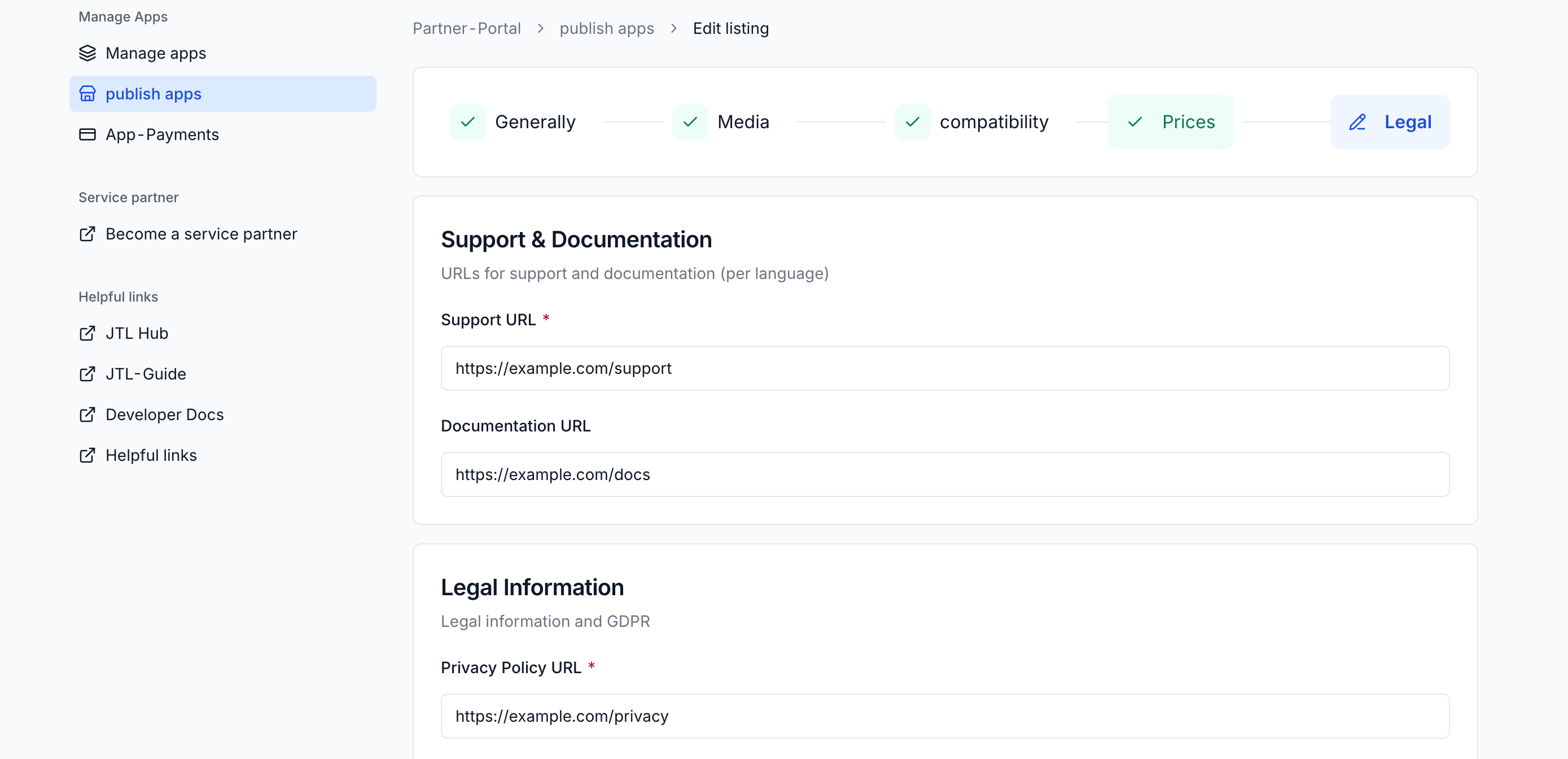 After completing the final step, you can save as draft or submit the listing for review.
## Submit for Review
Submit your listing when it's complete. JTL validates it, and if anything required is missing, you're pointed at the fields that need attention.
Your listing stays in `DRAFT` until you submit it. After you submit, it moves to `SUBMITTED` and enters review.
## Review and Publication
Your listing moves through these states:
| Status | Meaning |
| ----------- | -------------------------------------------------------------------------------- |
| `DRAFT` | You're still working on the listing. Editable. |
| `SUBMITTED` | You've submitted the listing. Review hasn't started. |
| `IN_REVIEW` | JTL is reviewing your listing. |
| `APPROVED` | Your listing is approved and live in the App Store. |
| `REJECTED` | Review found issues to address. Editable again so you can fix them and resubmit. |
While your listing is `SUBMITTED`, `IN_REVIEW`, or `APPROVED`, it's locked for editing. If it's rejected, edit it to address the feedback and submit again.
## Pre-submission Checklist
Confirm everything is in order before you submit:
| Check | Status |
| --------------------------------------------------------------- | ------ |
| You've registered as a seller | ⬜ |
| App is deployed and accessible via HTTPS | ⬜ |
| All app URLs point to production (no `localhost`) | ⬜ |
| App loads correctly in JTL Hub from the production URL | ⬜ |
| Setup completes successfully (session token verification works) | ⬜ |
| App renders correctly in the ERP Cloud | ⬜ |
| Name, description, and benefits are complete | ⬜ |
| Icons, screenshots, and category are set | ⬜ |
| At least one pricing package is defined | ⬜ |
| Support, privacy, terms, and GDPR URLs are live | ⬜ |
## What's Next?
Prefer to limit access? Share your app with selected merchants using activation codes.
Add panel views, custom tabs, and deeper ERP integration to your app.
After completing the final step, you can save as draft or submit the listing for review.
## Submit for Review
Submit your listing when it's complete. JTL validates it, and if anything required is missing, you're pointed at the fields that need attention.
Your listing stays in `DRAFT` until you submit it. After you submit, it moves to `SUBMITTED` and enters review.
## Review and Publication
Your listing moves through these states:
| Status | Meaning |
| ----------- | -------------------------------------------------------------------------------- |
| `DRAFT` | You're still working on the listing. Editable. |
| `SUBMITTED` | You've submitted the listing. Review hasn't started. |
| `IN_REVIEW` | JTL is reviewing your listing. |
| `APPROVED` | Your listing is approved and live in the App Store. |
| `REJECTED` | Review found issues to address. Editable again so you can fix them and resubmit. |
While your listing is `SUBMITTED`, `IN_REVIEW`, or `APPROVED`, it's locked for editing. If it's rejected, edit it to address the feedback and submit again.
## Pre-submission Checklist
Confirm everything is in order before you submit:
| Check | Status |
| --------------------------------------------------------------- | ------ |
| You've registered as a seller | ⬜ |
| App is deployed and accessible via HTTPS | ⬜ |
| All app URLs point to production (no `localhost`) | ⬜ |
| App loads correctly in JTL Hub from the production URL | ⬜ |
| Setup completes successfully (session token verification works) | ⬜ |
| App renders correctly in the ERP Cloud | ⬜ |
| Name, description, and benefits are complete | ⬜ |
| Icons, screenshots, and category are set | ⬜ |
| At least one pricing package is defined | ⬜ |
| Support, privacy, terms, and GDPR URLs are live | ⬜ |
## What's Next?
Prefer to limit access? Share your app with selected merchants using activation codes.
Add panel views, custom tabs, and deeper ERP integration to your app.