

What the Agent Builds
The task is to build a customer dashboard that answers two questions: which customers are most valuable, and what has a particular customer purchased?Tobias gives the agent these requirements. It builds two views:- A customer dashboard. A standalone app for viewing customer information, accessible both on its own and through the third-party applications section of Cloud ERP.
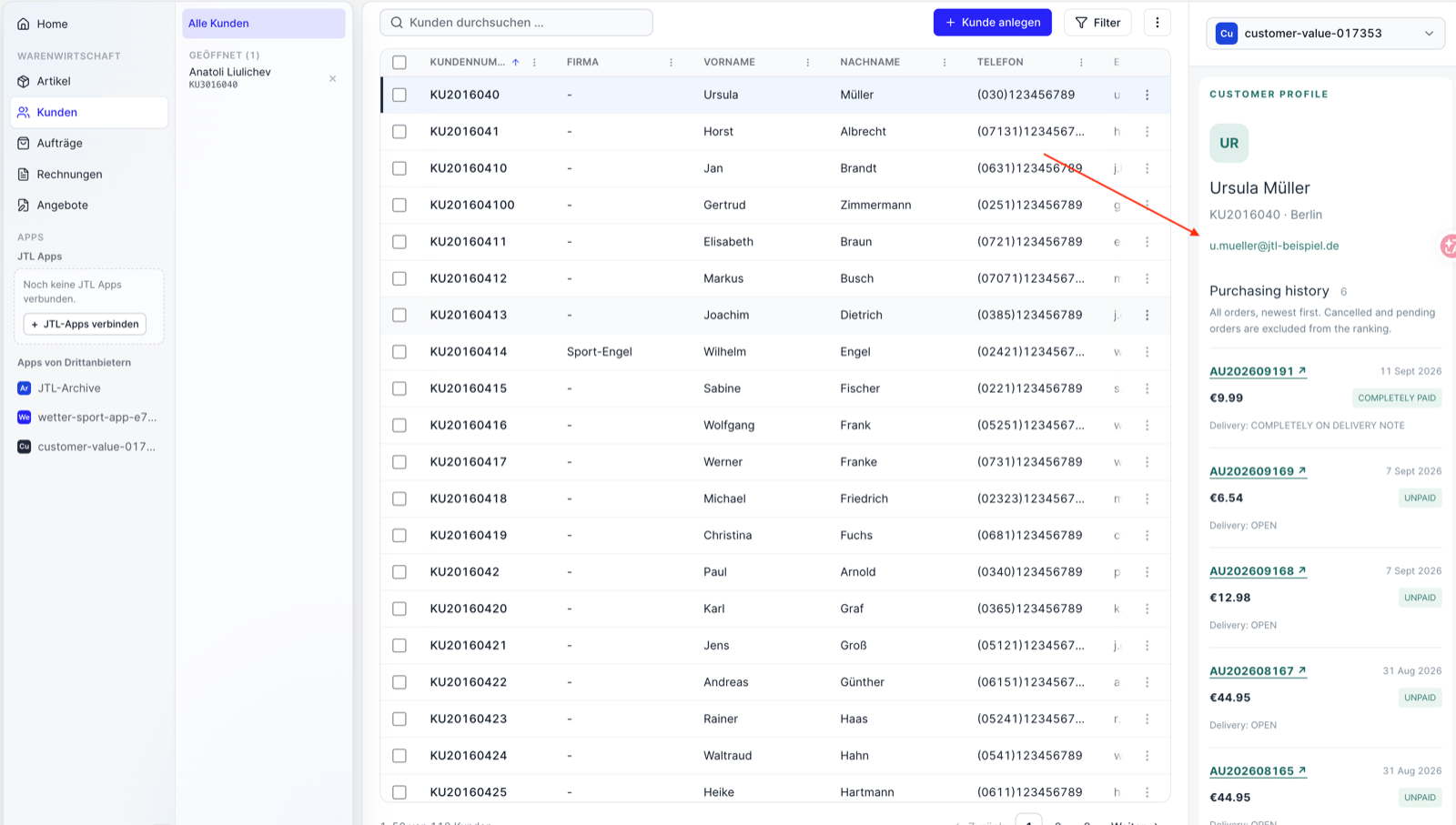
- A customer Panel. A contextual view that opens alongside a selected customer record, showing their purchase history and payment status.
Give the Agent Access to the JTL Developer Docs
An AI agent can generate code, but it needs to understand the platform it’s building for. Without the right context, it may make incorrect assumptions about how JTL apps are structured, authenticated, or registered.The JTL Developer Docs MCP server gives the agent access to the developer documentation while it works. MCP (Model Context Protocol) provides a standard way for AI applications to access external tools and information, allowing the agent to look up relevant JTL guides instead of relying on its existing knowledge alone.The JTL Developer Docs include a Build with AI guide that explains how to connect the docs MCP server to supported agents.Set up the Agent to Build, Not Just Chat
Access to the documentation is only part of the setup. The agent also needs to work with your project: create files, install dependencies, run commands, and register the app with the platform.Tobias uses ChatGPT with Codex enabled. Other agents can follow a similar workflow, provided they support the JTL Developer Docs MCP server and can work with files and commands on your machine.You’ll also need a JTL account, an organization, and an On-Prem ERP connected to the JTL Cloud Platform. In the walkthrough, this initial platform setup takes around 10 to 15 minutes.With the documentation connected, the necessary tools available, and the platform ready, you can move on to building the app.Describe the Outcome You Want
Tobias starts with a straightforward prompt:Please use the JTL Docs to build and register an app. I want the app to show me an overview of my most valuable customers. When I select a customer, I want to see an overview of their purchase history. Please also add a Panel that shows this history when I select a customer.The prompt describes what the app should do, without prescribing how to build it. It leaves the agent to choose the implementation, using the JTL Developer Docs to understand the platform and its requirements.The agent starts querying the docs, creating the project, and running the commands needed to build and register the app. When it asks which organization to use, Tobias selects his test organization and lets it continue.
Registration and Installation are Different
Registering an app makes it available on the JTL Cloud Platform. Installing it connects the app to a specific organization and requires approval for the access it requests.After registration, the agent opens the installation dialog. Tobias reviews the requested access and approves the installation for his organization.The agent then opens the standalone app. The dashboard displays data from Tobias’s On-Prem ERP using his existing JTL Cloud sign-in.The app is also available from the third-party applications section of JTL Cloud ERP. From there, Tobias can open a customer record and view the second part of the build: a Panel showing that customer’s purchase history.Both views are now working as requested, with the standalone dashboard providing the overview and the Panel bringing purchase history into the ERP workflow.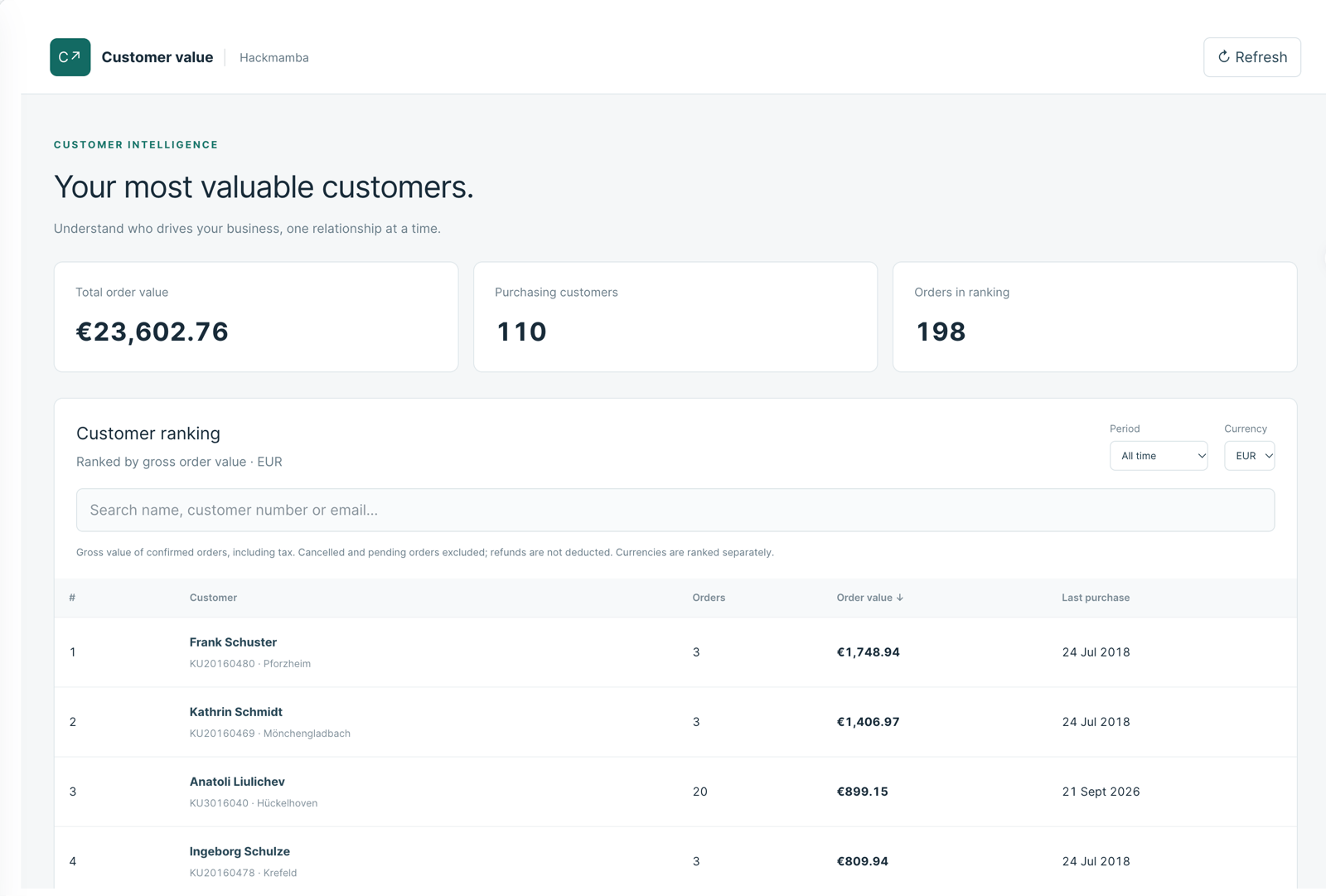
Improve the App Through Follow-up Prompts
The first version doesn’t have to be the final one.While exploring the app, Tobias notices that the item names in the customer Panel aren’t clickable. He asks the agent:Can we make the items in the Panel clickable links?The agent updates the app so the item names open the relevant items in a new tab.This is how Tobias continues working with the agent: build a first version, try it out, and ask for specific improvements. He can keep refining the app through prompts or open the generated project in his editor and take over when he needs more control.
Deploy the App so Your Team Can Use it
So far, the app runs on Tobias’s machine. To make it available to others in his organization, he asks the agent to deploy it:Please deploy my application so it is reachable by other people.The agent handles the deployment and updates the app’s registered URL on the JTL Cloud Platform. A few minutes later, Tobias opens the hosted version and confirms that it loads.He also tests the standalone URL in a private browser window. Without an authenticated session, the browser redirects to JTL login.In this demonstration, Tobias uses the hosting integrated into ChatGPT. Other hosting options are possible, depending on your tooling and requirements.From the initial prompt to a deployed app, the walkthrough takes about 20 minutes.