Use this file to discover all available pages before exploring further.
Build a JTL Cloud App from scratch using ASP.NET Core 8 (Web API) for the backend and Vite + React + TypeScript for the frontend.Time: ~30 minutesWhat you’ll build: A full-stack Cloud App that authenticates with JTL, completes the setup handshake via AppBridge, and displays products from JTL-Wawi.Stack: ASP.NET Core 8 (Web API), Vite + React + TypeScript, JTL AppBridge, JTL Platform UI
You’ll need the following tools installed on your machine:
.NET SDK8.0 or higher. Run dotnet --version to check.
Node.jsv18 or higher (includes npm, required for the React frontend). Run node --version and npm --version to check.
This guide uses ASP.NET Core for the backend and Vite + React for the frontend, scaffolded as two separate projects in one solution folder. This matches the modern Microsoft pattern (the older dotnet new react template based on Create React App is being phased out).
Before writing code, here’s how a JTL Cloud App works:Your app runs inside JTL’s App Shell (in an iframe). Communication between your app and the shell happens through AppBridge: a lightweight SDK that handles session tokens, method calls, and events. The frontend talks to your backend, which talks to JTL.
After the installation, press Ctrl + C to stop the frontend dev server.Your folder now looks like this:
my-jtl-app/├── Backend/ # ASP.NET Core Web API└── frontend/ # Vite + React + TypeScript
The dotnet new webapi template creates a minimal API project. The Vite command creates a React + TypeScript project. They run as separate processes during development.
ASP.NET Core uses appsettings.json for configuration. For local secrets, use the .NET user-secrets tool so credentials never end up in source control.From the Backend/ directory:
dotnet user-secrets initdotnet user-secrets set "Jtl:ClientId" "your-client-id-here"dotnet user-secrets set "Jtl:ClientSecret" "your-client-secret-here"
You’ll get your Jtl:ClientId and Jtl:ClientSecret after registering your app in Step 8. For now, set placeholder values; you’ll update them later.
User secrets are stored outside the repo, so they cannot be committed by accident. For production, use environment variables, Azure Key Vault, or your platform’s secrets manager.
The frontend runs on Vite’s dev server (default port 5173) and the backend runs on ASP.NET Core (port 5273). To call the backend from the frontend without CORS issues during development, proxy /api requests to the backend.Replace frontend/vite.config.ts:
What this does: Any frontend fetch('/api/...') is forwarded to the ASP.NET backend on port 5273. In production you’ll deploy the frontend separately and configure CORS or reverse-proxy at your hosting layer.It also adds Tailwind CSS support to the frontend and adds the assets directory alias for the JTL Platform UI components.
Your backend handles two things: getting an access token from JTL (using client credentials) and verifying session tokens from the App Shell.You’ll build this in three parts:
using System.Net.Http.Headers;using System.Text;using System.Text.Json;namespace Backend.Services;public class JtlAuthService{ private readonly HttpClient _http; private readonly IConfiguration _config; public JtlAuthService(HttpClient http, IConfiguration config) { _http = http; _config = config; } public string ApiBaseUrl => "https://api.jtl-cloud.com"; public string AuthEndpoint => "https://auth.jtl-cloud.com/oauth2/token"; public async Task<string> GetJwtAsync() { var clientId = _config["Jtl:ClientId"]; var clientSecret = _config["Jtl:ClientSecret"]; if (string.IsNullOrEmpty(clientId) || string.IsNullOrEmpty(clientSecret)) { throw new InvalidOperationException( "Jtl:ClientId and Jtl:ClientSecret must be configured."); } var basic = Convert.ToBase64String( Encoding.UTF8.GetBytes($"{clientId}:{clientSecret}")); var request = new HttpRequestMessage(HttpMethod.Post, AuthEndpoint); request.Headers.Authorization = new AuthenticationHeaderValue("Basic", basic); request.Content = new FormUrlEncodedContent(new Dictionary<string, string> { ["grant_type"] = "client_credentials", }); var response = await _http.SendAsync(request); var body = await response.Content.ReadAsStringAsync(); if (!response.IsSuccessStatusCode) { throw new HttpRequestException( $"Failed to fetch JWT ({(int)response.StatusCode}): {body}"); } using var doc = JsonDocument.Parse(body); return doc.RootElement.GetProperty("access_token").GetString()!; }}
What this does: Encodes your client credentials as Base64, sends a client_credentials grant to JTL’s auth endpoint, and returns an access token. This token is used server-side to verify session tokens and call JTL APIs.
using System.Net.Http.Headers;using System.Text;using System.Text.Json;using NSec.Cryptography;namespace Backend.Services;public record SessionTokenPayload( long Exp, string UserId, string TenantId, string? TenantSlug, string Kid);public class SessionVerifier{ private readonly HttpClient _http; private readonly JtlAuthService _auth; private readonly ILogger<SessionVerifier> _logger; public SessionVerifier( HttpClient http, JtlAuthService auth, ILogger<SessionVerifier> logger) { _http = http; _auth = auth; _logger = logger; } public async Task<SessionTokenPayload> VerifyAsync(string sessionToken) { var jwt = await _auth.GetJwtAsync(); var request = new HttpRequestMessage( HttpMethod.Get, $"{_auth.ApiBaseUrl}/account/.well-known/jwks.json"); request.Headers.Authorization = new AuthenticationHeaderValue("Bearer", jwt); var response = await _http.SendAsync(request); if (!response.IsSuccessStatusCode) { throw new HttpRequestException( $"Failed to fetch JWKS ({(int)response.StatusCode})"); } var jwksJson = await response.Content.ReadAsStringAsync(); var jwks = JsonSerializer.Deserialize<JsonElement>(jwksJson); // JTL session tokens are signed with Ed25519 (OKP). var key = jwks.GetProperty("keys")[0]; var publicKeyBytes = Base64UrlDecode(key.GetProperty("x").GetString()!); // Verify the token signature and extract payload return VerifyAndDecode(sessionToken, publicKeyBytes); } private SessionTokenPayload VerifyAndDecode(string token, byte[] publicKeyBytes) { var parts = token.Split('.'); if (parts.Length != 3) { throw new ArgumentException( "Invalid JWT format — expected 3 dot-separated parts."); } var signedData = Encoding.ASCII.GetBytes($"{parts[0]}.{parts[1]}"); var signature = Base64UrlDecode(parts[2]); var algorithm = SignatureAlgorithm.Ed25519; var publicKey = PublicKey.Import( algorithm, publicKeyBytes, KeyBlobFormat.RawPublicKey); if (!algorithm.Verify(publicKey, signedData, signature)) { _logger.LogError("JWT signature verification failed"); throw new UnauthorizedAccessException("Invalid token signature."); } var headerJson = Encoding.UTF8.GetString(Base64UrlDecode(parts[0])); var header = JsonSerializer.Deserialize<JsonElement>(headerJson); var kid = header.TryGetProperty("kid", out var k) ? k.GetString() ?? string.Empty : string.Empty; var payloadJson = Encoding.UTF8.GetString(Base64UrlDecode(parts[1])); var payload = JsonSerializer.Deserialize<JsonElement>(payloadJson); var exp = payload.GetProperty("exp").GetInt64(); if (DateTimeOffset.FromUnixTimeSeconds(exp) < DateTimeOffset.UtcNow) { throw new UnauthorizedAccessException("Token has expired."); } return new SessionTokenPayload( Exp: exp, UserId: payload.GetProperty("userId").GetString()!, TenantId: payload.GetProperty("tenantId").GetString()!, TenantSlug: payload.TryGetProperty("tenantSlug", out var slug) ? slug.GetString() : null, Kid: kid); } private static byte[] Base64UrlDecode(string input) { var padded = input.Replace('-', '+').Replace('_', '/'); padded += (padded.Length % 4) switch { 2 => "==", 3 => "=", _ => "" }; return Convert.FromBase64String(padded); }}
What this does: Fetches JTL’s public keys (JWKS), then uses them to verify the session token that came from AppBridge. The verified payload tells you which tenant (merchant) and user installed your app.
using Backend.Services;var builder = WebApplication.CreateBuilder(args);builder.Services.AddControllers();builder.Services.AddHttpClient<JtlAuthService>();builder.Services.AddHttpClient<SessionVerifier>();// Allow the Vite dev server to call the API during developmentbuilder.Services.AddCors(options =>{ options.AddDefaultPolicy(policy => { policy.WithOrigins("http://localhost:5173") .AllowAnyHeader() .AllowAnyMethod(); });});var app = builder.Build();app.UseCors();app.MapControllers();app.Run();
What this does: Registers HttpClient instances for both services, enables CORS for the Vite dev server, and maps controller routes. The [ApiController] attribute on ConnectTenantController handles model binding and validation automatically.See the Tenant Mapping section for more on managing tenants in production.
Your frontend has two kinds of pages, and they run in very different environments:
Pages that run inside the JTL platform (/setup, /erp)
Standalone pages (/hub)
Vite + React doesn’t have route groups like Next.js, so you’ll use React Router with a layout component that scopes the AppBridge provider to iframe routes.
cd frontendnpm install react-router-domcd ..
Then organize your frontend/src/ folder like this:
AppBridge is the SDK that handles communication between your app (running in an iframe) and the JTL App Shell (the host). It needs to be initialized client-side and made available to all your pages using React Context.Create frontend/src/components/AppBridgeProvider.tsx:
What this does: This handles the core integration flow. On mount, it:
Dynamically importscreateAppBridge to keep the module out of any pre-render path
Creates the bridge, establishing the iframe communication channel with the App Shell
Requests a session token from the App Shell via bridge.method.call('getSessionToken')
Sends the token to your backend (/api/connect-tenant) for verification and tenant identification
Stores the tenant ID in context so any child component can access it
All pages that need to communicate with the JTL platform (setup and ERP pages) can access the AppBridge instance and tenant information through the useAppBridge() hook. This avoids prop drilling and ensures a single shared connection state across your app.
The shell layout wraps every iframe-only route in AppBridgeProvider. Standalone routes (like /hub) skip the layout and render without it.Create frontend/src/layouts/ShellLayout.tsx:
import { Outlet } from 'react-router-dom';import AppBridgeProvider from '../components/AppBridgeProvider';export default function ShellLayout() { return ( <AppBridgeProvider> <Outlet /> </AppBridgeProvider> );}
When a merchant installs your app, JTL loads the lifecycle.configurationUrl from your manifest. This is where the merchant confirms the connection.Create frontend/src/pages/SetupPage.tsx:
import { Button, Box, Text } from '@jtl-software/platform-ui-react';import { useAppBridge } from '../components/AppBridgeProvider';export default function SetupPage() { const { appBridge, tenantId, error } = useAppBridge(); const handleSetupCompleted = async () => { if (!appBridge) return; try { await appBridge.method.call('setupCompleted'); } catch (err) { console.error('Setup completion failed:', err); } }; if (error) { return ( <Box className="flex flex-col items-center justify-center min-h-screen gap-4"> <Text type="h2" weight="bold" color="danger" as="h1"> Connection Failed </Text> <Text type="body" color="muted">{error}</Text> </Box> ); } return ( <Box className="flex flex-col items-center justify-center min-h-screen gap-6"> <Text type="h2" weight="bold" as="h1">Connect to JTL Cloud</Text> <Box className="max-w-md text-center"> <Text type="body" color="muted" align="center"> Your app has been verified and is ready to connect. Click below to complete the setup. </Text> </Box> {tenantId && ( <Text type="small" color="muted"> Tenant: <code className="bg-gray-100 px-2 py-1 rounded">{tenantId}</code> </Text> )} <Button onClick={handleSetupCompleted} label="Complete Setup" /> </Box> );}
What this does: By the time this page renders, the AppBridge provider has already handled the session token verification and tenant connection. The setup page just needs to call setupCompleted to tell the JTL Cloud the connection is done. The heavy lifting already happened in the provider.
This is the page merchants see when they open your app inside the ERP Cloud.Create frontend/src/pages/ErpPage.tsx:
import { Box, Text } from '@jtl-software/platform-ui-react';import { useAppBridge } from '../components/AppBridgeProvider';export default function ErpPage() { const { tenantId, error } = useAppBridge(); if (error) { return ( <Box className="p-8"> <Text type="h2" weight="bold" color="danger" as="h1">Error</Text> <Box className="mt-2"> <Text type="body" color="muted">{error}</Text> </Box> </Box> ); } return ( <Box className="p-8"> <Box className="mb-4"> <Text type="h2" weight="bold" as="h1">My JTL Cloud App</Text> </Box> <Box className="mb-6"> <Text type="body" color="muted"> Your app is running inside the JTL Cloud and connected to your tenant. </Text> </Box> {tenantId && ( <Box className="mt-6"> <Box className="mb-3"> <Text type="h3" weight="semibold" as="h2">Connected Tenant</Text> </Box> <Box className="bg-gray-50 rounded-lg p-4 font-mono text-sm"> <Text as="p"><strong>Tenant ID:</strong> {tenantId}</Text> </Box> <Box className="mt-3"> <Text type="small" color="muted"> ✅ Your app is connected and ready. Start building your UI here. </Text> </Box> </Box> )} </Box> );}
What this does: Reads the tenantId from the AppBridge context and displays it. In production, this is where you’d build your actual UI: dashboards, settings panels, data views, or whatever your app does. The tenant ID tells you which merchant is using your app, so you can fetch and display their data.
The Hub page opens in a standalone browser tab when a merchant clicks your app card in the JTL Hub. It runs outside the JTL Hub, so there is no AppBridge, no session token, and no tenant context.Create frontend/src/pages/HubPage.tsx:
import { Card, CardHeader, CardTitle, CardDescription, CardContent, CardFooter, Text, Box, Button,} from '@jtl-software/platform-ui-react';import { ArrowUpRight } from 'lucide-react';export default function HubPage() { return ( <Box className="min-h-screen w-full flex items-center justify-center p-8"> <Card className="max-w-[560px] w-full"> <CardHeader className="items-center text-center gap-4 pt-10 pb-6"> <CardTitle className="text-2xl font-semibold">Launched from JTL Cloud</CardTitle> <CardDescription className="text-center max-w-[420px]"> This page opens when a merchant clicks your app card in the JTL Cloud. It runs in a full browser tab, not inside the JTL Cloud. </CardDescription> </CardHeader> <CardContent className="px-6 pb-6"> <Box className="space-y-4"> <Box> <Text type="xs" weight="semibold" color="muted">Manifest mapping</Text> <Text type="inline-code">capabilities.hub.appLauncher.redirectUrl</Text> <Text type="xs" color="muted">Opens this page in a new browser tab</Text> </Box> <Box> <Text type="xs" weight="semibold" color="muted">How this differs</Text> <Text type="small" color="muted"> Unlike <Text type="inline-code">/erp</Text>, this page runs outside the ERP. There is no AppBridge, no session token, and no tenant context. Use it for standalone features like dashboards, onboarding flows, or settings. </Text> </Box> </Box> </CardContent> <CardFooter className="flex-col items-stretch gap-3 px-6 pb-8 pt-2"> <a href="https://hub.jtl-cloud.com/" target="_blank" rel="noopener noreferrer"> <Button variant="default" fullWidth label="Open JTL Cloud Hub" icon={<ArrowUpRight size={16} strokeWidth={2} />} iconPosition="right" /> </a> </CardFooter> </Card> </Box> );}
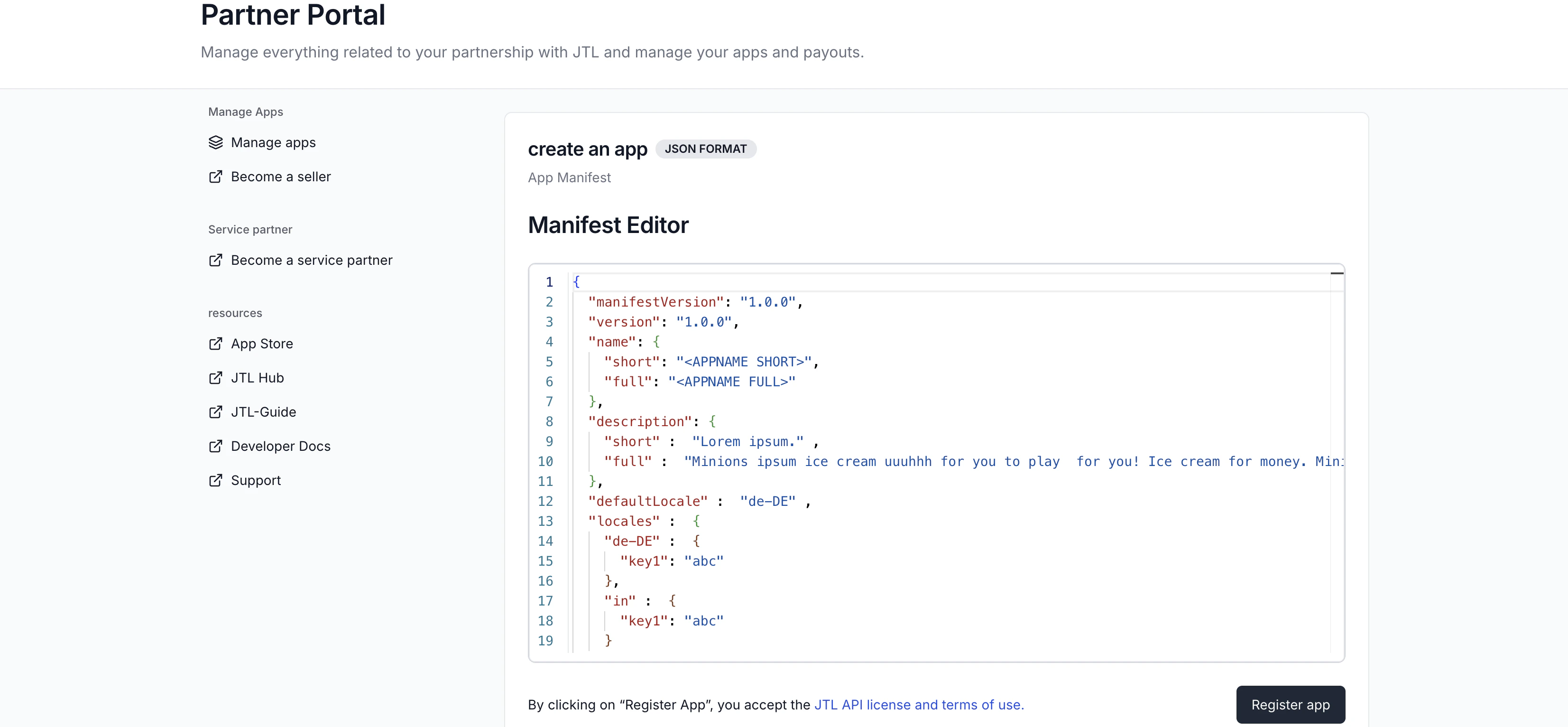
What this does: Defines how your app integrates with JTL Cloud (manifest) and how it appears in the App Store (listing). In this example, the app adds a Hub launcher and registers an ERP menu item.Field-to-route mapping in this guide:
Manifest field
Page in your code
manifest.lifecycle.configurationUrl
frontend/src/pages/SetupPage.tsx
manifest.capabilities.hub.appLauncher.redirectUrl
frontend/src/pages/HubPage.tsx
manifest.capabilities.erp.menuItems[].url
frontend/src/pages/ErpPage.tsx
The example uses http://localhost:5173/... for the manifest URLs (the Vite dev server) and https://example.com/... for the listing URLs (icons, support, legal). When you deploy, replace both with your real production domain. All URLs must be publicly reachable: localhost works only because the JTL App Shell runs in your browser.
You need both processes running. Open two terminals.Terminal 1 (backend):
cd Backenddotnet run
The backend listens on https://localhost:5273.Terminal 2 (frontend):
cd frontendnpm run dev
The frontend serves at http://localhost:5173.Opening http://localhost:5173 directly in a browser will result in a blank page or an error, since the app is meant to be rendered inside the JTL App Shell.
Your app is running inside the App Shell and connected to a tenant. Now let’s pull real product data from the ERP.The JTL-Wawi uses GraphQL to query data. Add a controller that the frontend can call.
Every API request that needs to access tenant data needs an X-Tenant-ID header. You extract this value from the verified session token payload. See the Session Token Payload reference for details.
using System.Net.Http.Headers;using System.Text;using Backend.Services;using Microsoft.AspNetCore.Mvc;namespace Backend.Controllers;[ApiController][Route("api/items")]public class ItemsController : ControllerBase{ private readonly HttpClient _http; private readonly JtlAuthService _auth; private readonly SessionVerifier _verifier; public ItemsController( IHttpClientFactory httpFactory, JtlAuthService auth, SessionVerifier verifier) { _http = httpFactory.CreateClient(); _auth = auth; _verifier = verifier; } [HttpGet] public async Task<IActionResult> Get() { var authHeader = Request.Headers.Authorization.ToString(); if (string.IsNullOrEmpty(authHeader) || !authHeader.StartsWith("Bearer ")) { return Unauthorized(new { error = "Missing or invalid Authorization header" }); } var sessionToken = authHeader.Substring("Bearer ".Length); try { var payload = await _verifier.VerifyAsync(sessionToken); var accessToken = await _auth.GetJwtAsync(); var query = """ { "operationName": "GetERPItems", "query": "query GetERPItems { QueryItems(first: 10) { nodes { id sku name notes basePriceUnit } totalCount } }" } """; var request = new HttpRequestMessage(HttpMethod.Post, $"{_auth.ApiBaseUrl}/erp/v2/graphql"); request.Headers.Authorization = new AuthenticationHeaderValue("Bearer", accessToken); request.Headers.Add("X-Tenant-ID", payload.TenantId); request.Content = new StringContent(query, Encoding.UTF8, "application/json"); var response = await _http.SendAsync(request); var body = await response.Content.ReadAsStringAsync(); // Forward the GraphQL response as-is return Content(body, "application/json"); } catch (Exception ex) { return StatusCode(500, new { error = "Failed to fetch items", details = ex.Message }); } }}
What this does: Reads the session token from the Authorization header, verifies it, fetches an access token, then calls the JTL Cloud GraphQL API with the right Bearer token and X-Tenant-ID header. The response is forwarded back to the frontend as-is.The existing app.MapControllers() call in Program.cs already discovers this controller, so no extra registration is needed.
What this does: On mount, the component requests a session token from the AppBridge, passes it to your backend as the Authorization header, and renders the returned products in a table.A sample response from the GraphQL API looks like this:
This is a minimal query to verify the connection. The GraphQL API supports filtering, pagination, and full-text search. Explore the full schema interactively in the GraphQL Playground, or read the Using Platform APIs guide for more patterns.
Your app runs inside the JTL App Shell (in an iframe). AppBridge handles communication. Your frontend requests a session token, sends it to your ASP.NET backend for verification, and the verified payload identifies the tenant. From there, your app can call the JTL-Wawi API.The project structure looks like this: