

Prerequisites
You need:- ✅ A finished frontend from the Build the Frontend guide
- ✅ A finished backend from either the Node.js, C#, or PHP guide
- ✅ A JTL ID (your login to the JTL ecosystem)
- ✅ Access to an organization (tenant) in the Partner Portal (created automatically on first login if you don’t have one yet)
- ✅ JTL-Wawi installed and running locally, with at least one product, and connected to JTL Cloud.
What you’re Building
So far, the frontend and backend are only loosely connected. The frontend can render the app, and the backend can verify authentication tokens, but neither side is yet tied to a real merchant installation. This guide closes the loop. By the end, opening the app from the ERP Cloud menu will show a table of real products from JTL-Wawi.1. Create the Manifest
Your app’s manifest declares how it integrates with JTL: the URLs it exposes and its ERP Cloud menu items. Create anapp.json file in the project root:
For the full field reference, see the App Manifest.
2. Register your App
Register your app with the manifest you just created. Both paths produce the same app.- CLI
- Registration Wizard
With your manifest saved as The CLI signs you in with your JTL ID, lets you select a tenant, and registers the app from your
app.json in your project root, run the CLI:app.json. It then writes your client ID and client secret to a .env file in your project.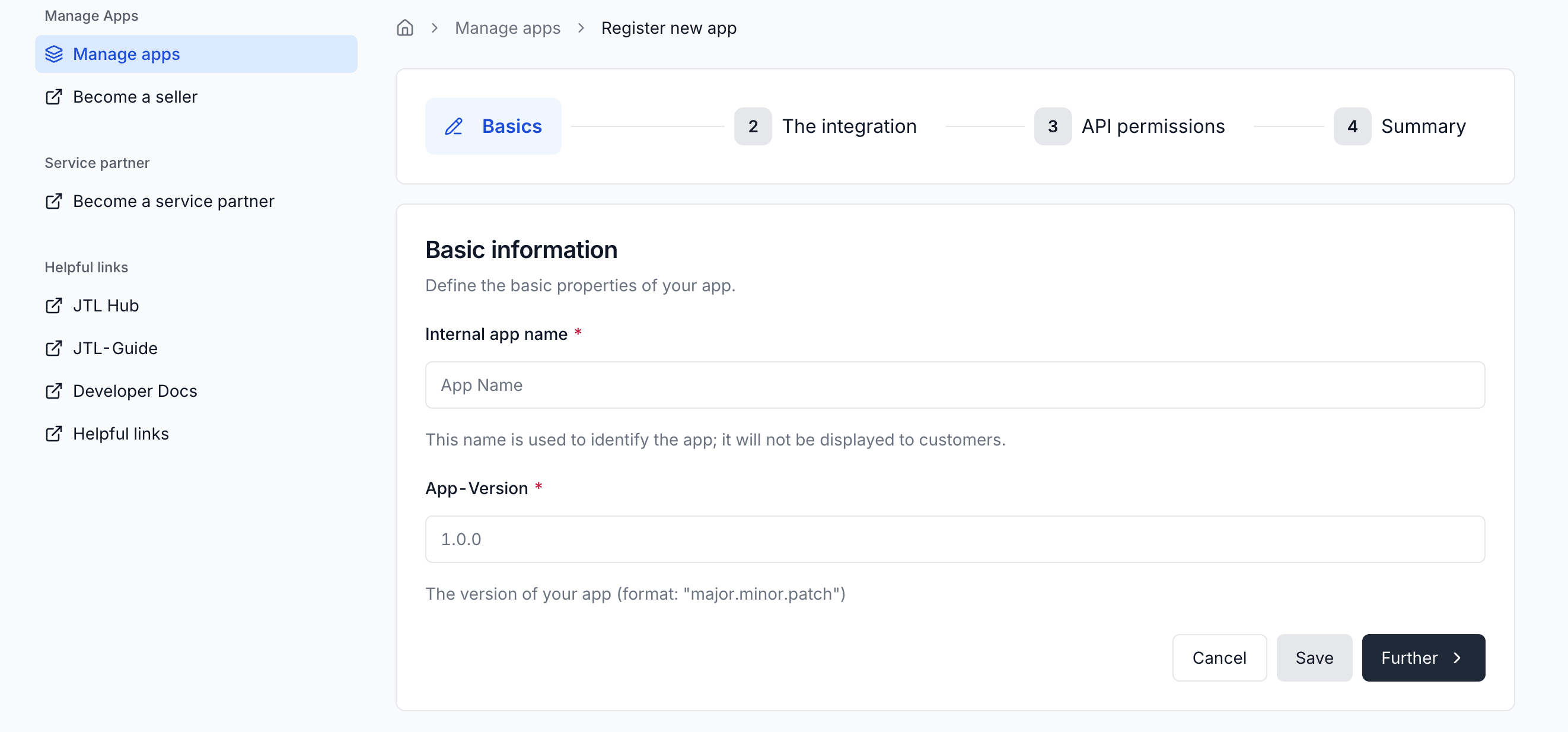
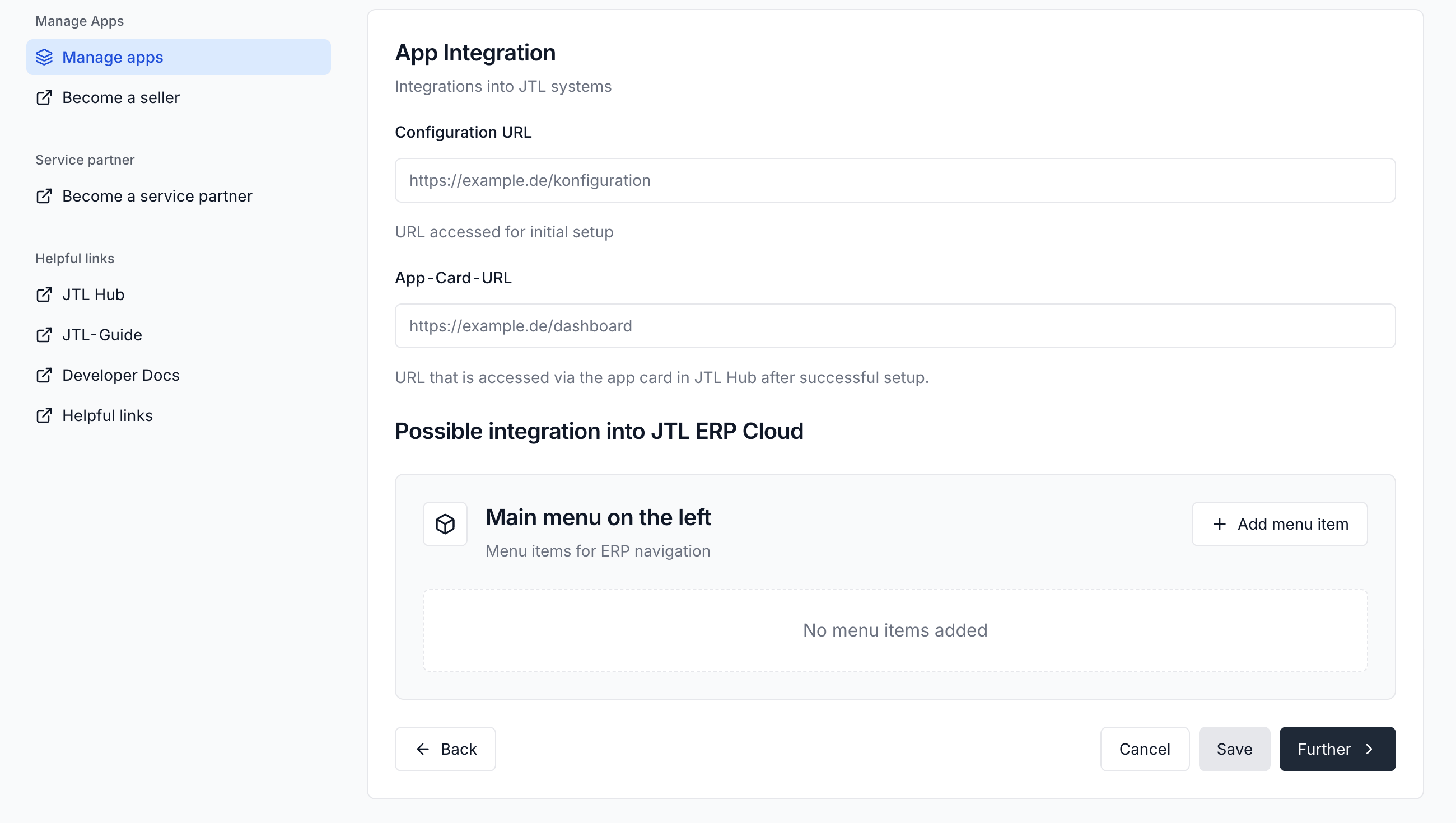
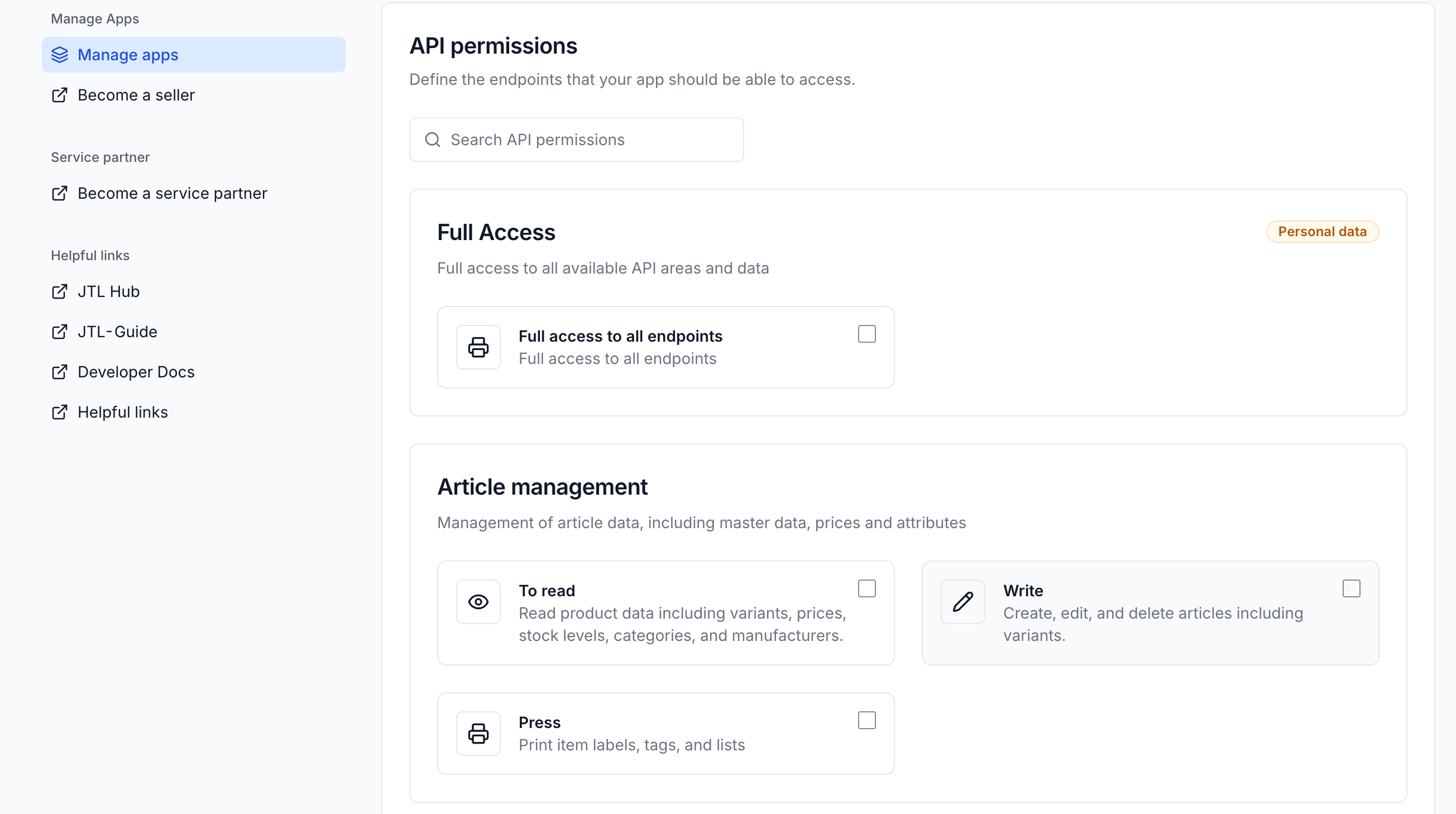
3. Update your Backend Credentials
Replace the placeholder values you set earlier with the real Client ID and Client Secret.- Node.js
- C#
- PHP
Open The
backend/.env and replace the placeholder values:tsx watch command picks up source file changes automatically, but environment variables are read once at startup. Stop and restart the backend to pick up the new values.4. Run Both Processes
You need both the frontend and backend running. Open two terminals from the project root. Terminal 1 (backend):- Node.js
- C#
- PHP
http://localhost:5173 directly in a browser will show a blank page or the placeholder error state. The app is meant to be rendered inside the JTL App Shell, which is what the next step covers.
5. Install the App in JTL Hub
1
Open JTL Hub
Go to JTL Hub and log in.
2
Find your App
Navigate to the Manage apps menu and click the Apps in development tab. You should see your newly registered app.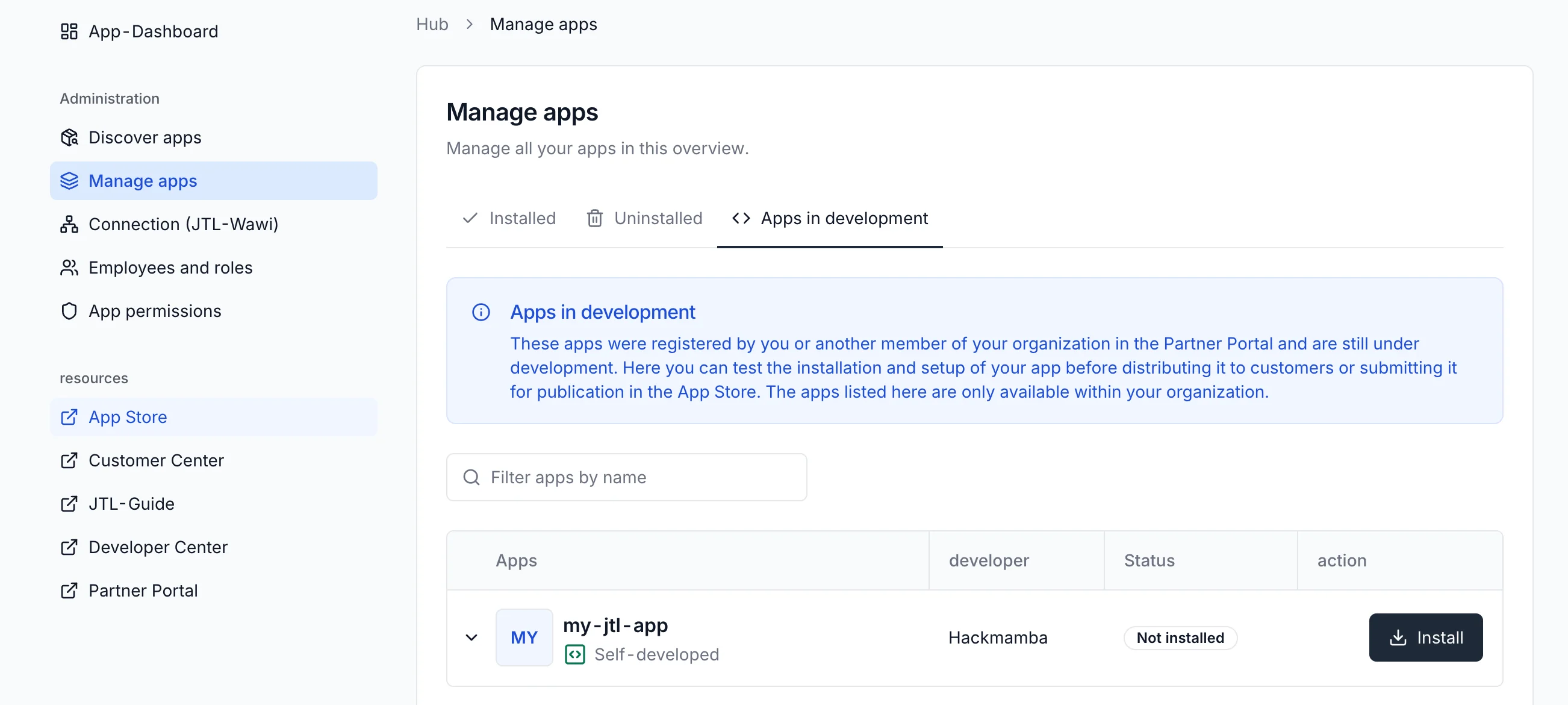
3
Install the App
Once the app is installed, you’ll see a success screen with the option to configure the app. Click the Configure app button to proceed to the next step.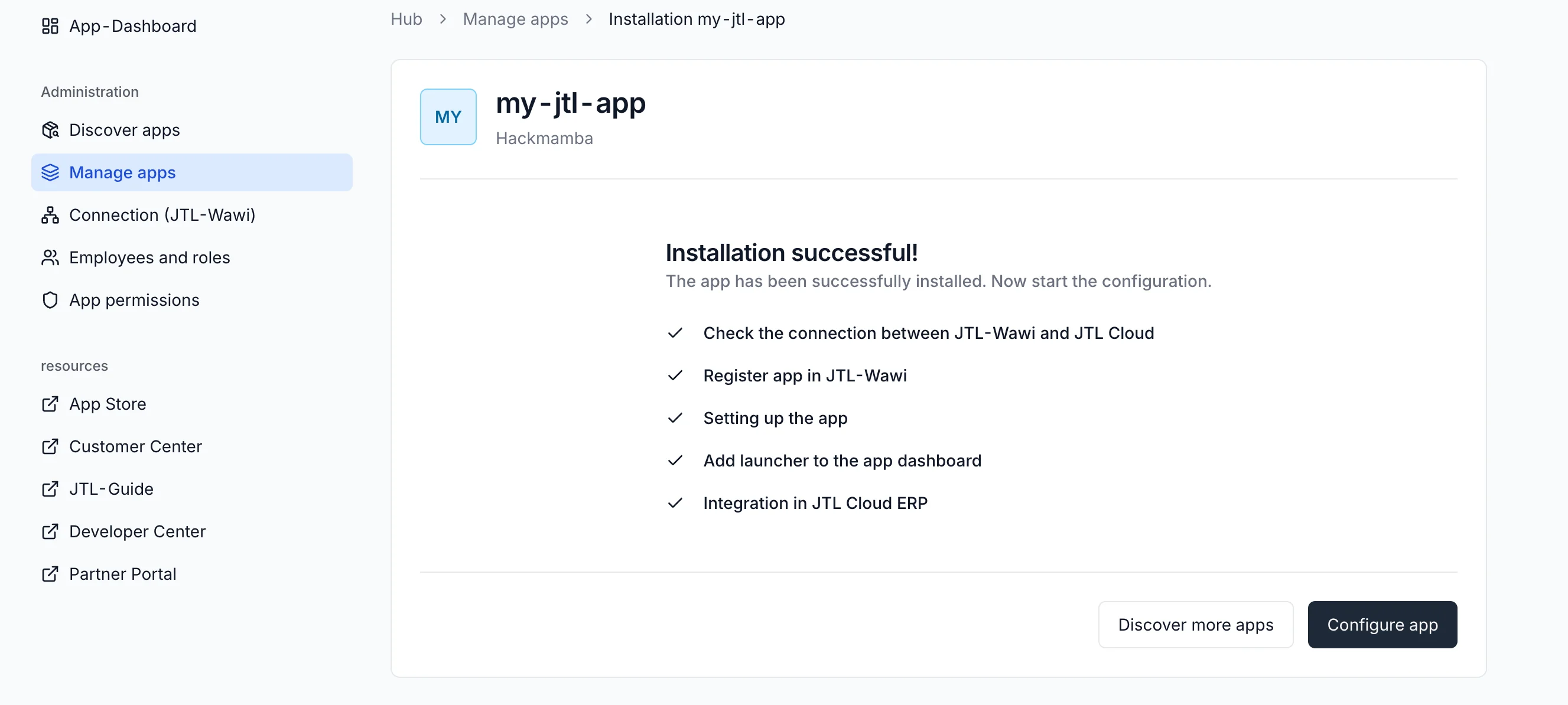
4
Complete the Setup
Click the Complete Setup button on your setup page. This triggers the full setup handshake between your app and JTL.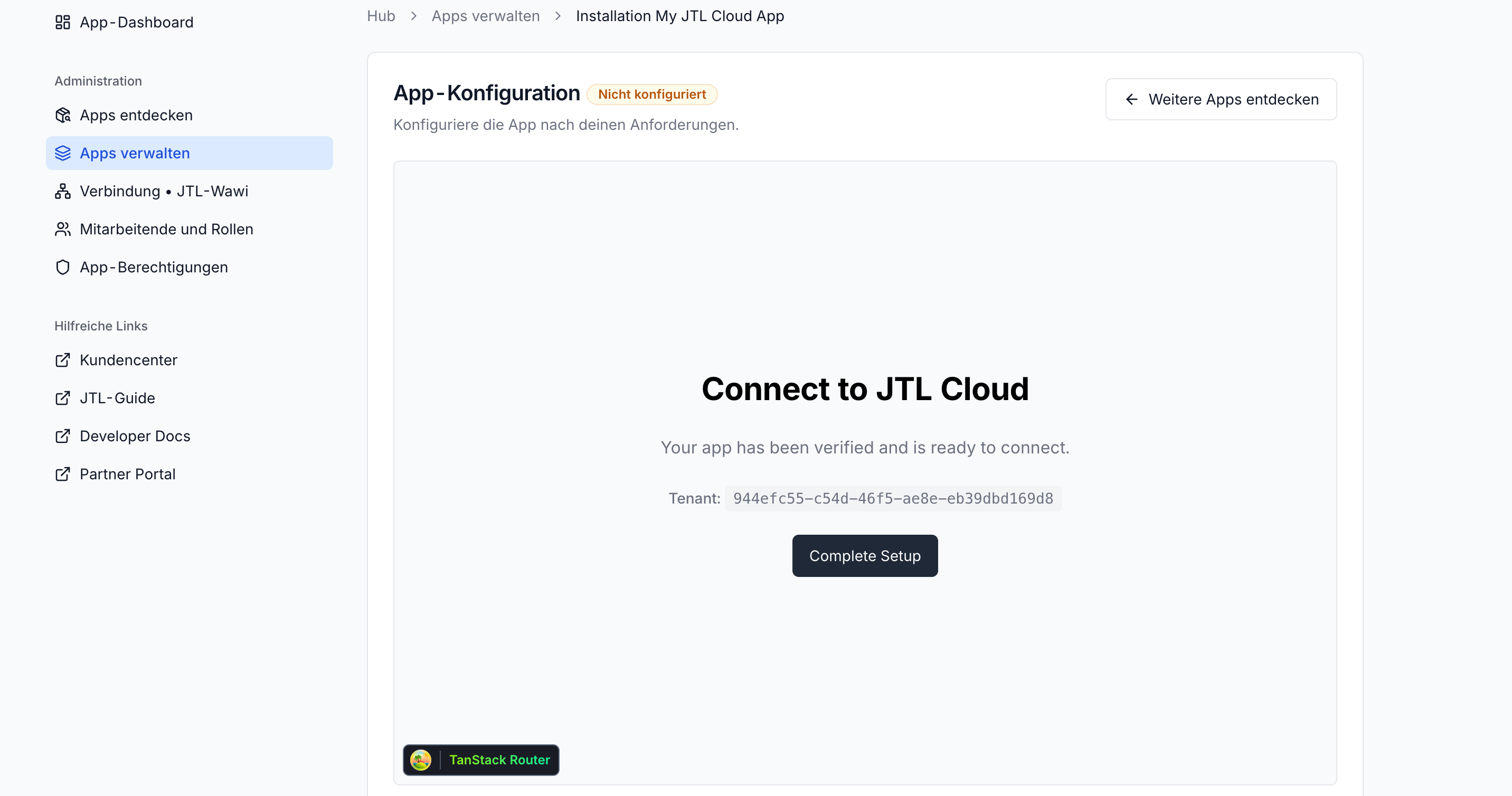
6. Add an Items Endpoint
The backend can now make tenant-scoped calls to the JTL Cloud API. The next step is adding an endpoint that fetches products from JTL-Wawi via GraphQL.Every API request that needs to access tenant data needs an
X-Tenant-ID
header. The backend extracts this value from the verified session token
payload. See the Session Token
Payload
reference for details.- Node.js
- C#
- PHP
Add the items route to The route reads the session token from the
backend/src/server.ts. Place it alongside the existing connect-tenant route:Authorization header (sent by the frontend as a Bearer token), verifies it to extract the tenant ID, fetches a fresh access token, and forwards the GraphQL response back to the frontend as-is.7. Display Items in the ERP Page
Replacefrontend/src/routes/_shell.erp.tsx with a version that fetches and renders the products:
Authorization header, and renders the returned products in a table. The session token round-trip means the backend always knows which tenant the request belongs to, even though the frontend only ever holds a short-lived signed token.
A sample response from the GraphQL API looks like this:
8. Open the App from the ERP Menu
In the ERP Cloud, navigate to the App menu and find the My JTL App menu item that the manifest registered. Clicking it loads/erp inside the App Shell.
You should see a header reading My JTL Cloud App, the connected tenant ID, and a table listing the first ten products from your JTL-Wawi instance.
This completes the full handshake flow: the App Shell loads your frontend in an iframe, AppBridge provides a short-lived session token, your backend verifies the token and uses its access token to make a tenant-scoped request to the JTL Cloud API, and the response is returned to the browser.
Common Issues
'Cannot find module ./jtl-auth.js' or similar import error
'Cannot find module ./jtl-auth.js' or similar import error
This error usually means TypeScript and Node are resolving modules differently.With
"type": "module" in package.json and "module": "NodeNext" in tsconfig.json, Node expects ES module imports to include file extensions. Even if your source file is jtl-auth.ts, the import must use ./jtl-auth.js.TypeScript resolves this correctly during development, and Node finds the compiled .js file at runtime.If you prefer not to use .js extensions, switch to "module": "CommonJS" in tsconfig.json and remove "type": "module" from package.json.'CLIENT_ID and CLIENT_SECRET must be defined in .env'
'CLIENT_ID and CLIENT_SECRET must be defined in .env'
This means the backend started without loading your environment variables.The most common cause is running Node without the
--env-file=.env flag. In that case, the .env file exists but is never read.The dev and start scripts already include this flag. If you’re running the server manually, add it back or use npm run dev.Also confirm that the .env file is inside the backend/ directory. The path is resolved relative to where Node is executed.'Failed to fetch JWT (401)' from the auth endpoint
'Failed to fetch JWT (401)' from the auth endpoint
A 401 from the auth endpoint means the credentials are not valid.If you are still using placeholder values, this is expected. Real credentials are provided after registering your app in the Partner Portal.If you have already registered:
- check for typos or extra spaces in
.env - restart the dev server after making changes
.env require a restart.The frontend can reach the backend but still shows 'Waiting for backend'
The frontend can reach the backend but still shows 'Waiting for backend'
This usually means the backend responded, but not with a successful (2xx) response.The frontend treats any non-2xx response as an error and shows the placeholder state.Open the browser console and inspect the
/api/connect-tenant response:- a 401 is expected at this stage without real credentials
- a 500 or network error indicates a backend issue (check server logs)
CORS error in the browser console
CORS error in the browser console
This means the browser blocked the response due to an origin mismatch.The backend allows requests from
http://localhost:5173, which is the default Vite dev server port. If Vite runs on a different port (for example, 5174), the request will be rejected.Update the origin in server.ts to match the actual port, or restart Vite on 5173.If you’re using the Vite dev proxy for /api/*, CORS should not appear. Seeing this error usually means the request is being made directly to the backend instead of going through the proxy.What’s Next?
You’ve built a working JTL Cloud App from scratch: a frontend that runs inside the JTL App Shell, a backend that verifies session tokens and proxies requests to the JTL Cloud API, and a real connection to a tenant pulling live product data. Where to go from here:Test your App
Validate your app in the sandbox with test data.
Using Platform APIs
Use the JTL-Wawi REST and GraphQL APIs, handle responses, and work with
tenant-scoped data.
GraphQL Playground
Try queries and mutations interactively against your ERP instance.
App Shell & UI
Learn how to integrate deeper with the JTL UI and App Shell.
Submit your App
Publish to the App Store, or share your app privately with activation codes.